Multilanguage Packager for Articulate Localization and Rise
Enables learners to switch languages at any time during a course developed with Articulate Localization. It solves a known limitation in Articulate Localization.
Download the tool (zip) Read the user guide
The download is a zip file. Unzip it, then open the HTML file in a web browser.
By downloading or using this tool, you accept the Terms of use. You use it at your own risk and on your own responsibility.
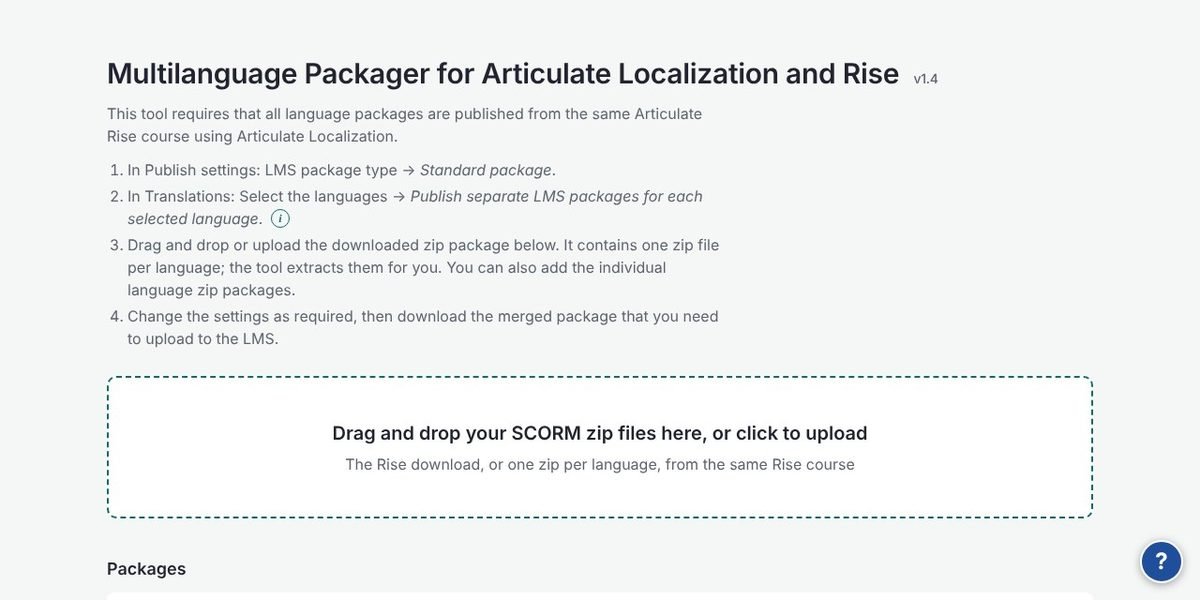
Problem
With Articulate Localization, the learner selects a language once and the LMS stores that choice with the attempt. Changing language requires resetting the attempt, and the learner loses their progress.
Solution
The packager combines the separate SCORM packages that Rise publishes for each language into one SCORM package. Learners choose their language when the course opens and can switch at any point with a dropdown above the course. Progress, bookmarks and completion are shared across languages.
Steps
- In the Rise publish settings, set the LMS package type to Standard package.
- Under Translations, select the languages and choose “Publish separate LMS packages for each selected language”.
- Add the downloaded zip file to the packager. You do not need to unzip it.
- Review the packages and set the language order, dropdown labels, text direction, dropdown position and default language.
- Build and download the merged package, then upload it to your LMS.
Read the full user guide below. It is also inside the tool: select the ? button at the bottom right of the tool.
Compatibility
SCORM 1.2 and all SCORM 2004 editions, detected automatically. All language packages must be published from the same Rise course with Articulate Localization. Right-to-left languages are detected automatically.
User guide · version 1.4
How to Let Learners Change Language Mid-Course in Articulate Rise
1. About the tool
Multilanguage Packager combines the separate SCORM packages that Rise publishes for each language of a localized course into a single SCORM package. Learners choose their language when the course opens and can switch at any point using a dropdown above the course. Progress, bookmarks and completion are shared across languages.
It supports SCORM 1.2 and SCORM 2004 (all editions). The format is detected automatically from the packages you add.
This tool requires that all language packages are published from the same Articulate Rise course using Articulate Localization. It runs entirely in your browser; no files are uploaded to any server and no internet connection is needed.
2. Publish the language packages from Rise
- In Publish settings, set LMS package type to Standard package.
- Under Translations, select the languages and choose Publish separate LMS packages for each selected language.
- Export and download the zip file. It contains one SCORM zip package per language; you do not need to unzip it.
3. Merge the packages and upload to the LMS
- Open
multilanguage-packager-for-articulate-localization-and-rise-v1.4.htmlin your browser. - Drag and drop the downloaded zip file onto the drop area, or click it to upload. The tool extracts the language packages and detects the language, course and LMS format automatically. You can also add the individual language zip packages.
- Review the Packages table and adjust the settings described below.
- Click Build and download merged package. The merged zip downloads automatically; use Download again if your browser blocked it.
- Upload the merged SCORM package to the LMS.
4. Settings
| Setting | What it does |
|---|---|
| Order | Arrows set the order of languages in the dropdown. |
| Dropdown label | The name of the language as learners see it in the dropdown and in the first-launch language dialog. |
| Bar label | The text shown beside the dropdown (for example “Language:” or “Langue :”), per language. |
| Direction | LTR or RTL for the language bar. Right-to-left languages are detected automatically and can be overridden. |
| Position | Whether the dropdown sits at the top right or top left while that language is active. |
| Default | The language the course opens in before a learner has chosen one. The default package also provides the manifest and shared files. |
| Course title in the LMS | Optional. Replaces the title in the manifest and browser tab; leave blank to keep the default package’s title. |
| Manifest identifier suffix | Text added to the end of the package’s unique ID (its identifier in imsmanifest.xml). Because the merged package keeps the original course ID, some LMSs would otherwise treat it as an update of the single-language course. The suffix makes it a distinct course. |
| Keep the course resumable after completion | Off by default. When checked, the tool sets scope.EXIT_SUSPEND_IF_COMPLETED = true in scormdriver/driverOptions.js of the merged package. |
5. Change log
Version 1.4
- New help button (?) that opens this user guide inside the tool.
- Contact footer updated.
Version 1.3
- New option Keep the course resumable after completion in the Options section, unchecked by default. It controls whether
scope.EXIT_SUSPEND_IF_COMPLETED = trueis added toscormdriver/driverOptions.js.
For any questions, please send an email to contact@elearningdevtools.com